
In short
You can add Seabreeze to your phone or tablet home screen so it opens instantly - no typing a URL, no hunting through browser tabs, just tap and go.
It takes about 10 seconds on either Android or iPhone, and the icon sits right on your home screen like any other app.
How to do it
On Android: Chrome menu, then "Add to Home Screen". On iPhone: Safari Share button, then "Add to Home Screen".
Adding Seabreeze to your home screen is the fastest way to check the forecast before you head out - tap the icon and you're straight into wind, tides, and swell without opening a browser first.
It works on any Android phone or tablet using Chrome, and on any iPhone or iPad using Safari.
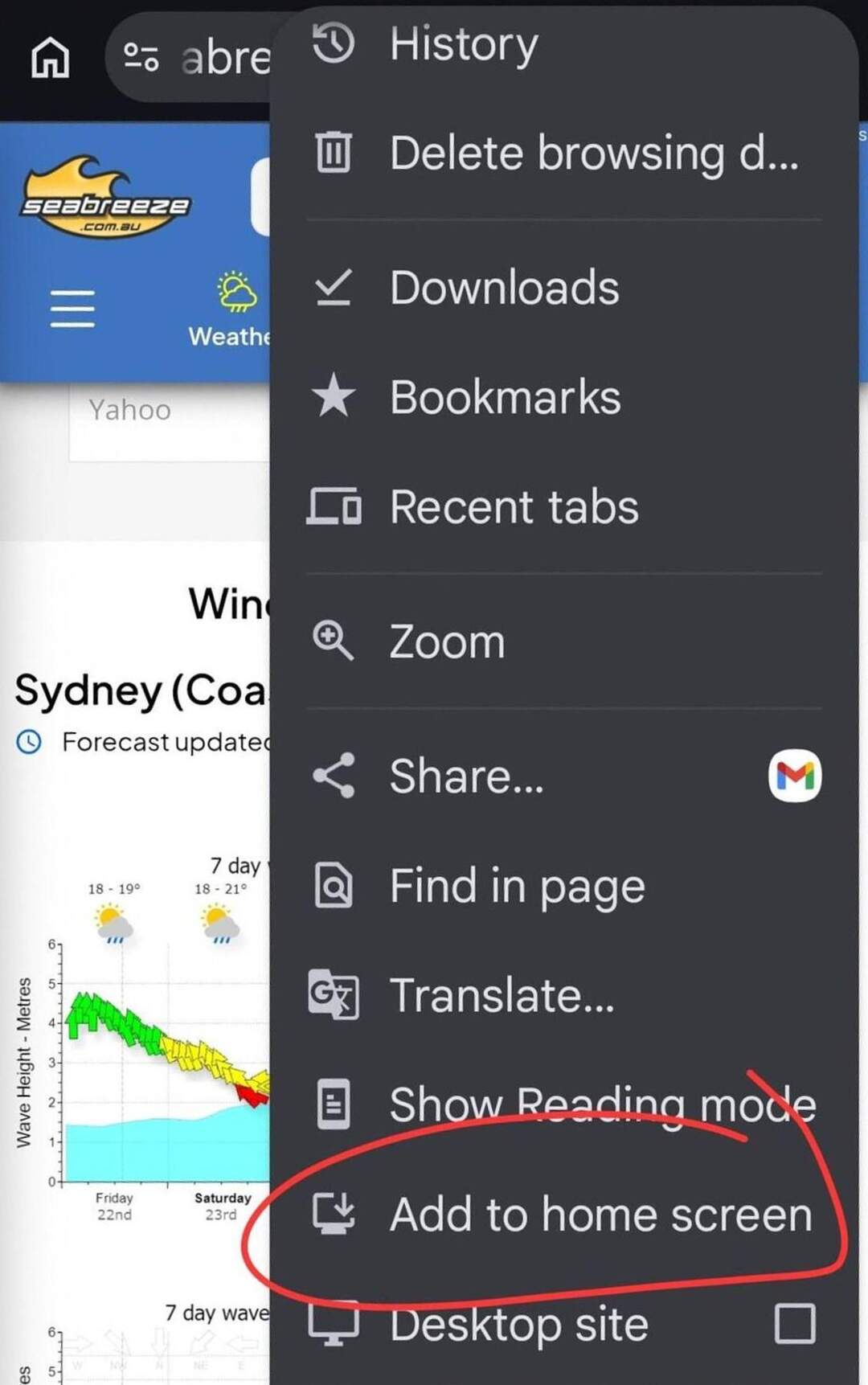
Android (Chrome)
- Open Chrome and go to seabreeze.com.au
- Tap the three-dot menu in the top-right corner
- Tap "Add to Home Screen"
- Edit the name if you like, then tap "Add"
- The Seabreeze icon appears on your home screen
On some Android versions you'll be asked to drag the icon into position - just drop it wherever you want it.
iPhone and iPad (Safari)
- Open Safari and go to seabreeze.com.au
- Tap the Share icon (the box with an arrow pointing up) at the bottom of the screen
- Scroll down and tap "Add to Home Screen"
- Edit the name if you want, then tap "Add" in the top-right corner
- The Seabreeze icon appears on your home screen
On iPhone and iPad, this only works from Safari - it won't show the option in Chrome or other browsers on iOS.
"Takes 10 seconds. Saves you 10 seconds every single time you want to check the forecast."
What you get
The icon looks and works like an app - tap it and Seabreeze opens full screen, straight to your last location.
No typing, no searching, no navigating through browser history.
Perfect for the quick check before you leave the house, or the tide lookup when you're already at the ramp and running on mobile data.
Set it up once at seabreeze.com.au and you're done.